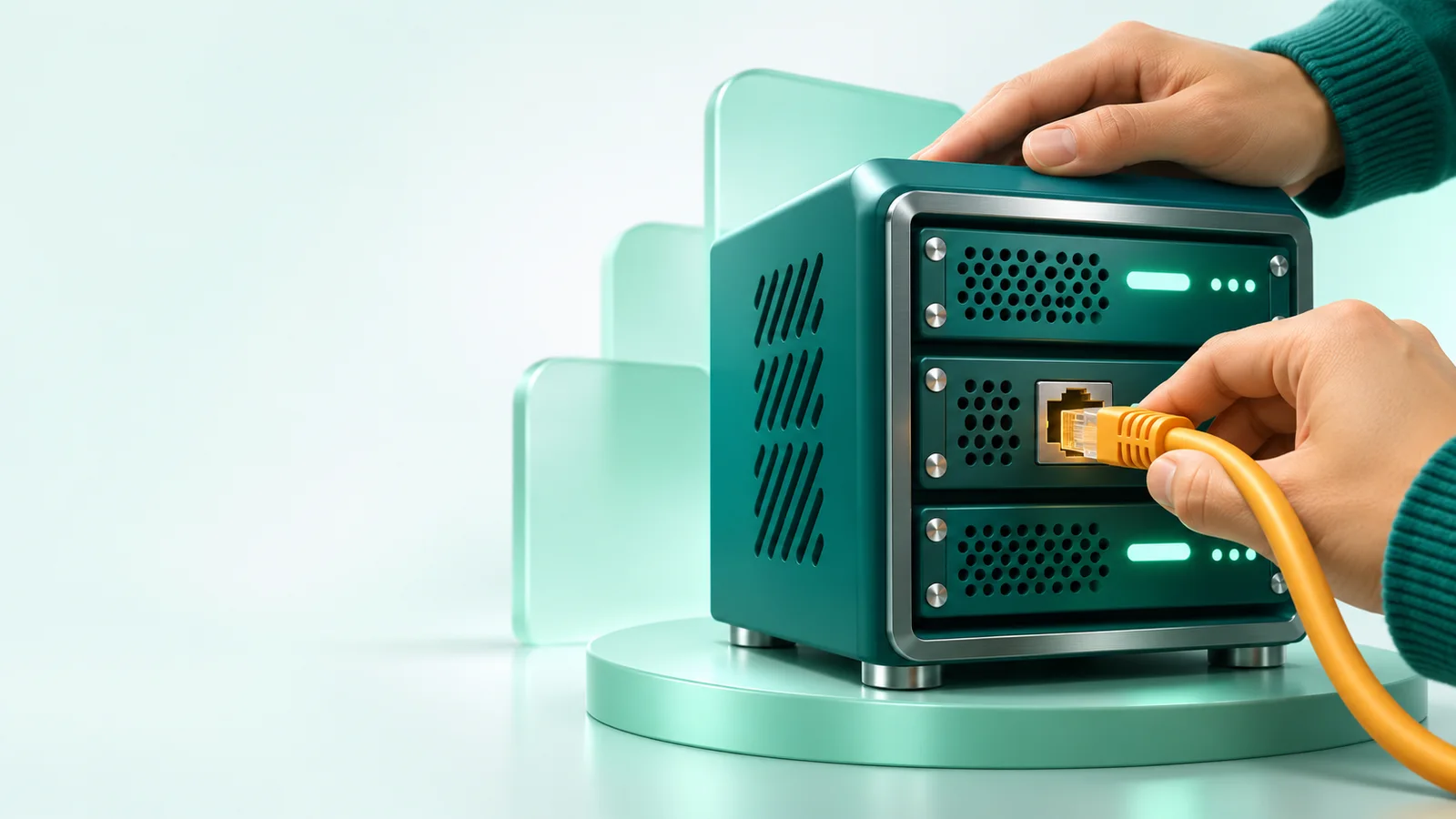
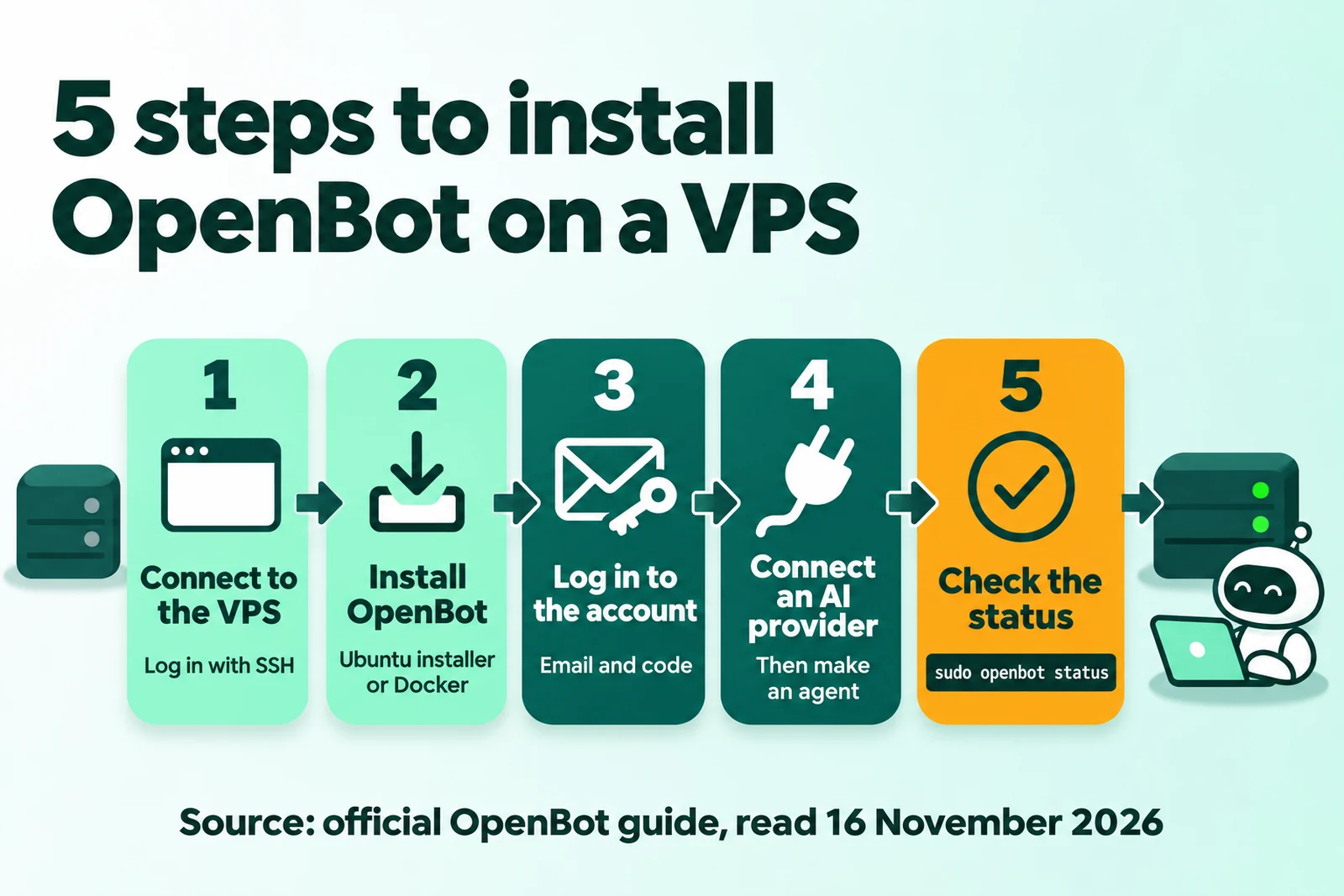
Direct answer: To install OpenBot on a VPS, you need a 64-bit Ubuntu 24.04 LTS VPS, SSH access, an OpenBot account, and 1 AI provider. The install has 5 steps: connect to the VPS, install OpenBot, log in to the account, connect an AI provider, and check the status.
The steps in this article come from the official OpenBot guide and its official script, read on 16 November 2026. The sources are the OpenBot VPS install guide (30 October 2026) and the official OpenBot repository on GitHub. This article shows no terminal output, because we wrote it from the official documents, not from a test install.
The guide gives 2 install methods: the Ubuntu installer and Docker Compose. If OpenBot is new to you, read what OpenBot is first.
What you need
Prepare these 5 items before you start. The list comes from the "What you need" part of the official guide, read 16 November 2026.
- A 64-bit VPS with Ubuntu 24.04 LTS. The server must have systemd and sudo access. Builds are available for x86_64 and arm64.
- SSH access. The VPS provider gives you the IP address, the user, and a password or an SSH key.
- An OpenBot account. You need access to the email of that account, because the server login uses a code that goes to that email.
- An AI plan or an API key. OpenBot uses the ChatGPT, ClaudeClaude ProThe paid subscription for the Claude AI assistant from Anthropic. It unlocks connectors to outside tools.Open the glossary, Gemini, or Grok plan that you already pay for, or your own model (OpenBot home page, read 16 November 2026). The VPS does not include model access.
- A work licence for business use. OpenBot is free only for personal and noncommercial use, under the PolyForm Noncommercial License 1.0.0 (OpenBot FAQ, read 16 November 2026).
The Starter work licence costs €10 each month for 1 member, or €7.20 each month with yearly payment. The pricing page says the licence is free until 1 December 2026 (OpenBot pricing page, read 16 November 2026). AI agents do not count as seats (OpenBot commercial licence, clause 1.6, read 16 November 2026).
The guide gives no minimum RAM size. A browser, coding tools, and many agents use more memory than 1 text task. You also do not need a domain. The cost details are in the article OpenBot costs for a business.
Step 1: connect to the VPS with SSH
Open a terminal on your computer, and log in to the VPS with the SSH details from your VPS provider. Replace user and 203.0.113.10 with the user and the IP address of your server.
ssh user@203.0.113.10On the VPS, update the package list and install curl and ca-certificates. Both install methods use curl to download the official files.
sudo apt-get update
sudo apt-get install -y curl ca-certificates
Step 2: choose the install method
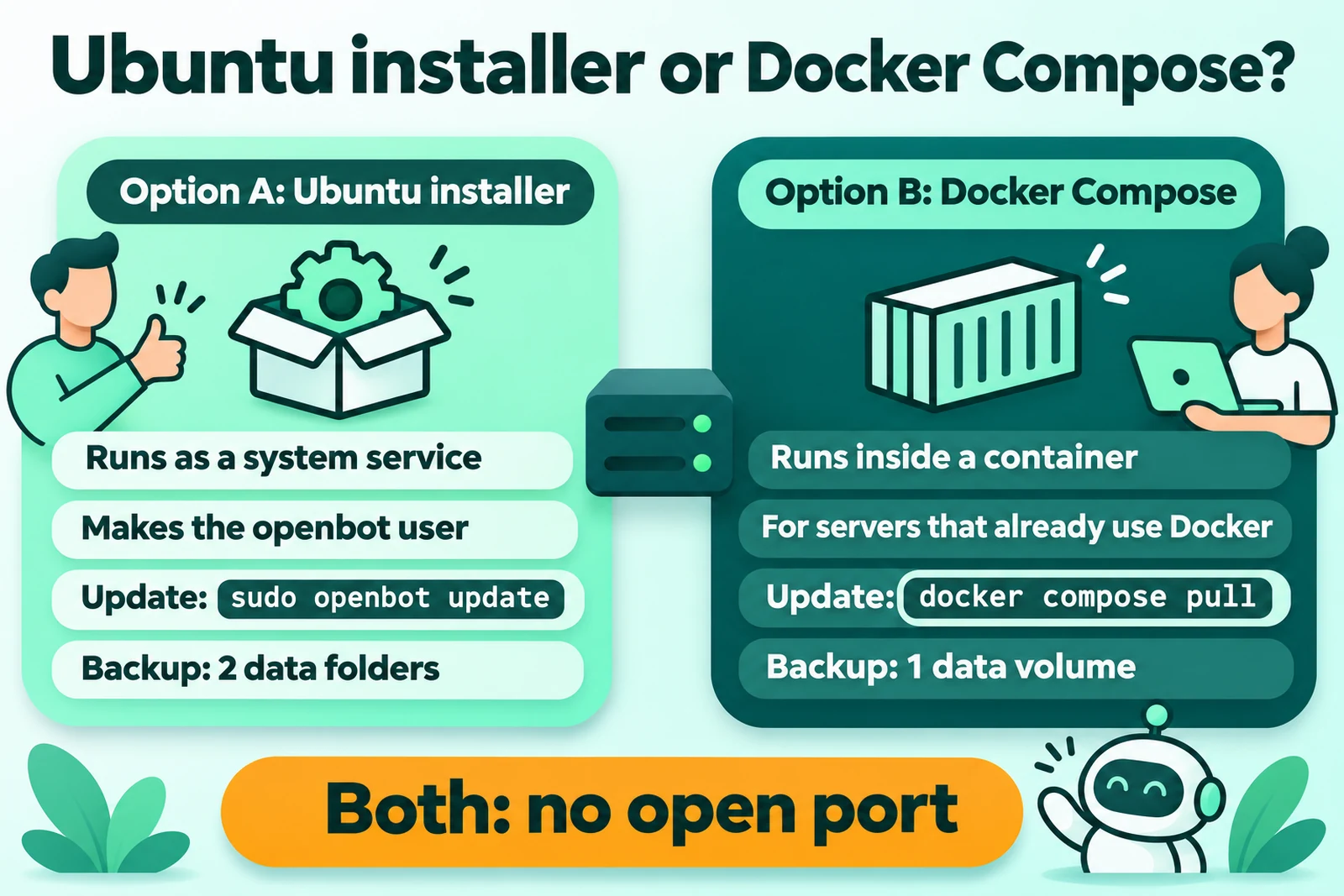
Choose the Ubuntu installer if you want OpenBot to run as a system service. Choose Docker Compose if your server already uses Docker. Both rules come from the official guide, read 16 November 2026.
| Item | Option A: Ubuntu installer | Option B: Docker Compose |
|---|---|---|
| How it runs | System service with systemd | Container with automatic restart |
| User | The installer makes a dedicated openbot user | Agents work inside the container |
| Daily commands | sudo openbot ... | sudo docker compose ... |
| Update | sudo openbot update | sudo docker compose pull, then sudo docker compose up -d |
| Backup | 2 data folders, kept together | 1 data volume, kept complete |
| Open port | None | None |
Option A: Ubuntu installer
Run these 3 commands on the VPS. The first command downloads the official script and runs it with sudo.
curl -fsSL https://raw.githubusercontent.com/nightly-labs/openbot/main/scripts/install-server.sh | sudo bash
sudo openbot login --name "OpenBot VPS"
sudo openbot status
Read the install-server.sh script on GitHub before you run it with sudo. The script does these 5 checks and tasks (official script, read 16 November 2026):
- The script checks for Linux, root rights, systemd, and
apt-get. If one is missing, the script stops. - On a system that is not Ubuntu 24.04, the script warns that OpenBot is tested on Ubuntu 24.04, and then it continues.
- The script selects the x86_64 or the arm64 build. Other machines have no release.
- The script downloads the latest Linux release and checks its SHA-512 checksum against the release manifest.
- The script installs the service. On a new install, the installer makes the
openbotuser if that user does not exist.
The latest release on 16 November 2026 was 0.71.0, from 14 November 2026 (OpenBot changelog). The script always gets the latest release, so your version can be newer.
Option B: Docker Compose
Run these 7 commands on the VPS. The option B commands do not install Docker, so Docker with the docker compose command must already be on the server.
mkdir openbot-vps
cd openbot-vps
curl -fsSLO https://raw.githubusercontent.com/nightly-labs/openbot/main/docker/compose.yaml
curl -fsSLO https://raw.githubusercontent.com/nightly-labs/openbot/main/docker/seccomp.json
sudo docker compose up -d
sudo docker compose exec openbot openbot login --name "OpenBot VPS"
sudo docker compose exec openbot openbot status
The official compose.yaml file has 5 important settings (read 16 November 2026):
- The image
ghcr.io/nightly-labs/openbot:latestwithrestart: unless-stopped. - The
seccomp=./seccomp.jsonprofile andno-new-privileges:truefor the sandbox. shm_size: 1g, because Chromium needs more shared memory than the Docker default of 64 MB.stop_grace_period: 60s, so that OpenBot can stop its agents and close the database.- The volume
openbot-data:/data, and no published port.
Do not remove the seccomp profile. The OpenBot Linux page also tells you not to start OpenBot with --no-sandbox (OpenBot for Linux, read 16 November 2026).
Step 3: connect the server to your OpenBot account
The command openbot login --name "OpenBot VPS" connects the server to your account. Enter the email of your OpenBot account, and then enter the code that OpenBot sends to that email.
The install alone does not log the server in. After the login, open the OpenBot desktop app or the browser version with the same account. Select "OpenBot VPS" in the server list (official guide, step 3, read 16 November 2026).
The name "OpenBot VPS" is the example name from the guide. You can use a different name, for example the name of your business.
Step 4: connect an AI provider and make an agent
Connect the AI provider on the server, because a provider login on your laptop does not move to the VPS. Select the provider in OpenBot, and then follow the login or APIAPIThe official door 2 systems use to exchange data, without anybody copying it by hand.Open the glossary key flow of that provider.
OpenBot adds no charge of its own, and you pay the AI provider through your plan or API key (OpenBot comparison page, read 16 November 2026). When the provider is connected, make 1 agent and give it 1 small test task.
For a business, design the workflow before you make many agents. An example design with a trigger, agents, and an approval step is in OpenBot workflow examples for business.
Step 5: commands after the install
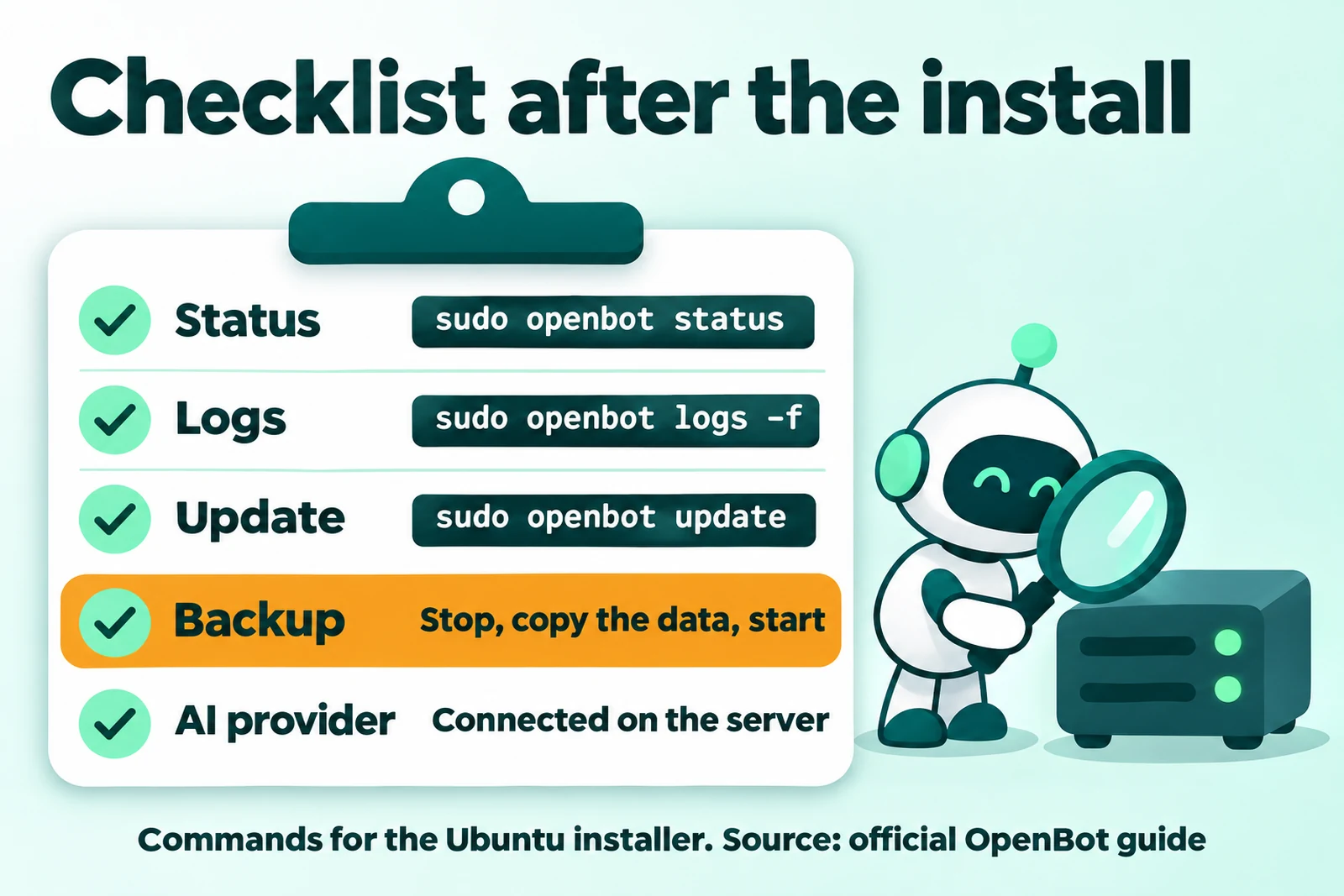
Use these 5 commands to maintain a server that uses the Ubuntu installer. All commands come from the official guide, read 16 November 2026.
| Task | Command | When to use it |
|---|---|---|
| Check the server | sudo openbot status | After the install, after an update, and when an agent is idle |
| Read the logs | sudo openbot logs -f | When the server does not appear or an agent fails |
| Restart | sudo openbot restart | After you install a new tool for the agents |
| Update | sudo openbot update | When a new release is available, after a backup |
| Stop and start | sudo openbot stop, then sudo openbot start | Before and after a backup |
For Docker Compose, the guide uses these commands for logs, status, and updates:
sudo docker compose logs --tail 100 openbot
sudo docker compose exec openbot openbot status
sudo docker compose pull
sudo docker compose up -d
sudo docker compose exec openbot openbot status
An update can migrate the database. An older image after an update is not a safe rollback. Thus, make a backup before each update (official guide, read 16 November 2026).
Backup: keep the complete data
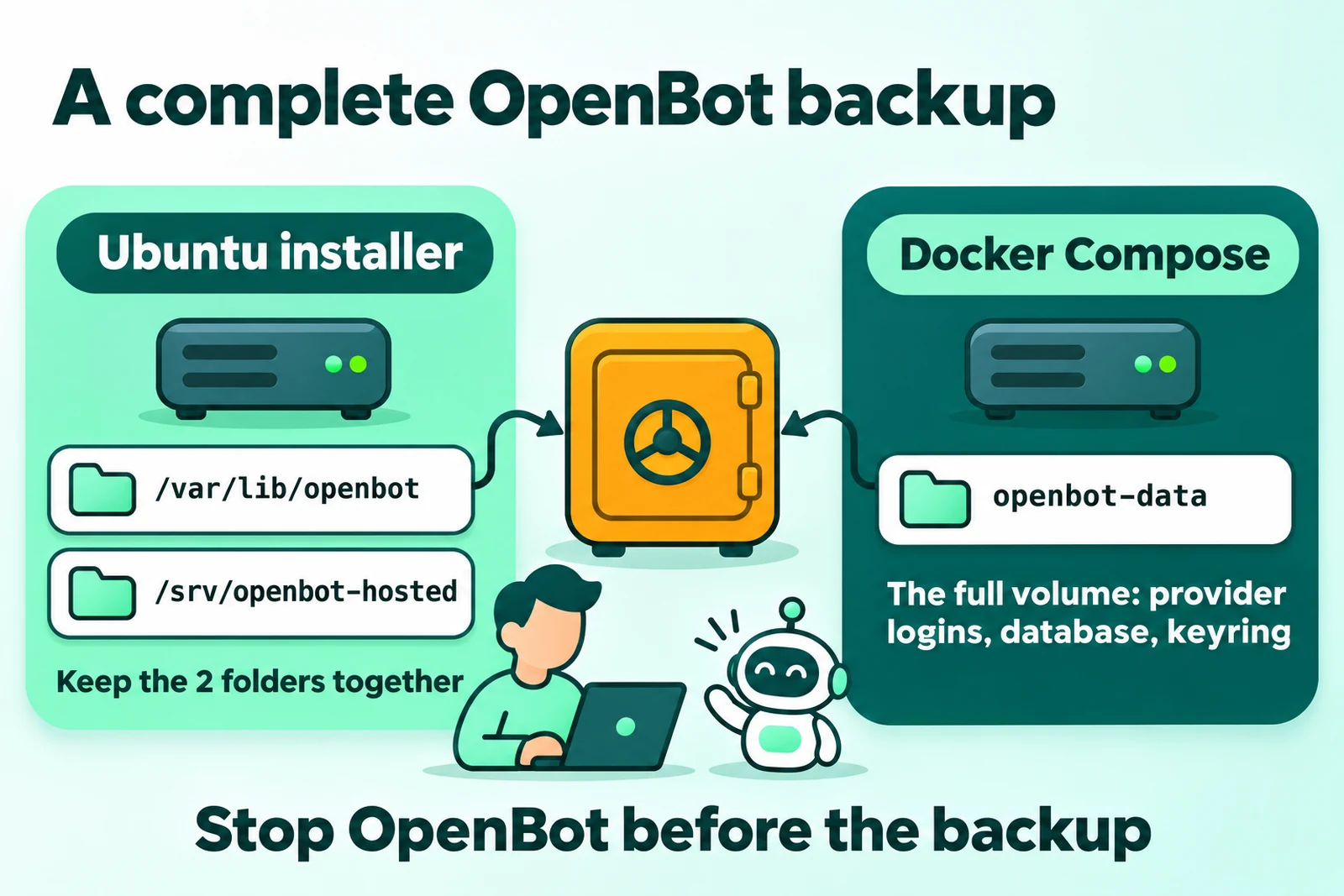
An OpenBot backup must hold all server data, not only the agent workspace. Save the data for your install method.
- Ubuntu installer: save
/var/lib/openbotand/srv/openbot-hostedtogether. The first folder is the home of the service user. The second folder holds the keyring data. - Docker Compose: stop the OpenBot container, and then save the full data volume. In the official
compose.yaml, that volume has the nameopenbot-data.
The Docker volume holds the provider logins, the database, and the encryption keyring. A copy of the workspace only is not a complete backup (official guide, read 16 November 2026).
With the Ubuntu installer, run sudo openbot stop before you copy the folders. Run sudo openbot start after the copy is complete.
Security of the OpenBot server
OpenBot agents can change files, run commands, use the network, and control the browser without asking each time (OpenBot FAQ, read 16 November 2026). Thus, set up the server with these 4 rules.
- Do not open a port. A comment in the official
compose.yamlsays that OpenBot only connects out and needs no published port. The guide asks for no firewall rule for OpenBot. - Use a dedicated user. The Ubuntu installer runs OpenBot as the
openbotuser, not as your SSH user. With Docker, agents work inside the container. - Keep the server apart from important data. Use a dedicated VPS for OpenBot. With Docker, mount only the host folders that the agents may use.
- Give only tasks that you trust. The official FAQ tells you to give agents only tasks that you trust, and to keep backups.
Workspaces, conversations, and attachments stay on the server that runs OpenBot. The AI provider still receives the prompts that the agents send (OpenBot FAQ, read 16 November 2026).
Common errors and how to check them
This table shows 6 problems that the official guide and script mention. The right column gives the check and the fix.
| Symptom | Cause | Check and fix |
|---|---|---|
| The server does not appear in the app | The login on the VPS is not complete, or the app uses a different email | Run sudo openbot status. Log in again with the same email |
| The agent cannot use a model | The provider is connected only on the laptop | Connect the provider again on the server |
| The script stops at the start | The system has no systemd, no apt-get, or no sudo | Use an Ubuntu 24.04 LTS VPS and run the script with sudo |
| The container fails because of the sandbox | The host limits user namespaces or adds AppArmor rules | Use the official seccomp.json. Check sudo docker compose ps and the container logs |
| Work waits | The server has too little memory | Read the memory data in openbot status. Run less work at the same time or add RAM |
| Data is lost after a version change | An older image runs after a database migration | Make a backup before each update. Do not go back to an older image |
With the Ubuntu installer, read sudo openbot logs -f when the cause is not clear. With Docker, read sudo docker compose logs --tail 100 openbot.
When an install service is the better choice
A self-install is a good fit if you know Linux and need 1 agent for personal tasks. Use an install service if 1 of these 3 conditions applies to your business.
- Nobody on your team wants to maintain a Linux server, its logs, updates, and backups.
- You need a complete workflow: a trigger, several agents, app connections, an approval step, and a report.
- You want the workflow to run in days, not after several weeks of trial.
Rama Digital installs 1 workflow for Rp 5,000,000, a fixed price, in 3 to 5 work days. 1 workflow has 1 trigger, a maximum of 4 agents, a maximum of 3 app connections, 1 human approval step, and 1 report channel.
The price does not include the server, the OpenBot work licence, or the AI plan, which you pay directly to each provider. Rama Digital is an independent installer, not part of OpenBot. The Rama Digital team uses AI agent workflows every day for its own work.
If you still compare OpenBot with a cloud product, read OpenBot vs Grok Bot and the difference between an AI assistant and an AI worker.
Questions and answers
Do I need a domain to install OpenBot on a VPS?
No. The official guide says that the standard setup uses the OpenBot account services and the OpenBot app, so you do not need your own domain.
What is the minimum VPS RAM for OpenBot?
The official guide gives no minimum number. Choose the RAM for your workload, because a browser, coding tools, and many agents use more memory.
Do I need to open a port in the firewall?
No. OpenBot only connects out and needs no published port, according to a comment in the official compose.yaml, read on 16 November 2026.
Is OpenBot free for a business?
No. OpenBot is free for personal and noncommercial use. A business needs a work licence from €10 each month. The pricing page, read on 16 November 2026, says the licence is free until 1 December 2026.
Do the agents keep working when my laptop is off?
Yes, while OpenBot runs on the VPS and the necessary services stay available. You use the laptop only to open the app and supervise the agents.
Can I use Debian or a different Ubuntu version?
The script accepts a system with apt-get and systemd, but it gives a warning outside Ubuntu 24.04. The guide asks for Ubuntu 24.04 LTS, so use that version for a business server.
Does the VPS cost include access to an AI model?
No. You connect an AI provider in OpenBot. You pay the VPS cost and the AI provider cost separately, to each provider.
Next step
Start with 1 Ubuntu 24.04 LTS VPS and 1 agent with 1 test task. Add agents after the status, the logs, and the backup work.
If you want a business workflow that is installed and tested on your server, use the OpenBot install service from Rama Digital.
Sources
- OpenBot, How to Install OpenBot on a VPS: Ubuntu and Docker Guide, 30 October 2026. Read 16 November 2026.
- Official install-server.sh script and official compose.yaml in the nightly-labs/openbot repository. Read 16 November 2026.
- OpenBot, home page and FAQ, pricing page, and commercial licence, updated 29 October 2026. Read 16 November 2026.
- OpenBot for Linux, changelog 0.71.0, and OpenBot vs Grok Bot comparison page. Read 16 November 2026.