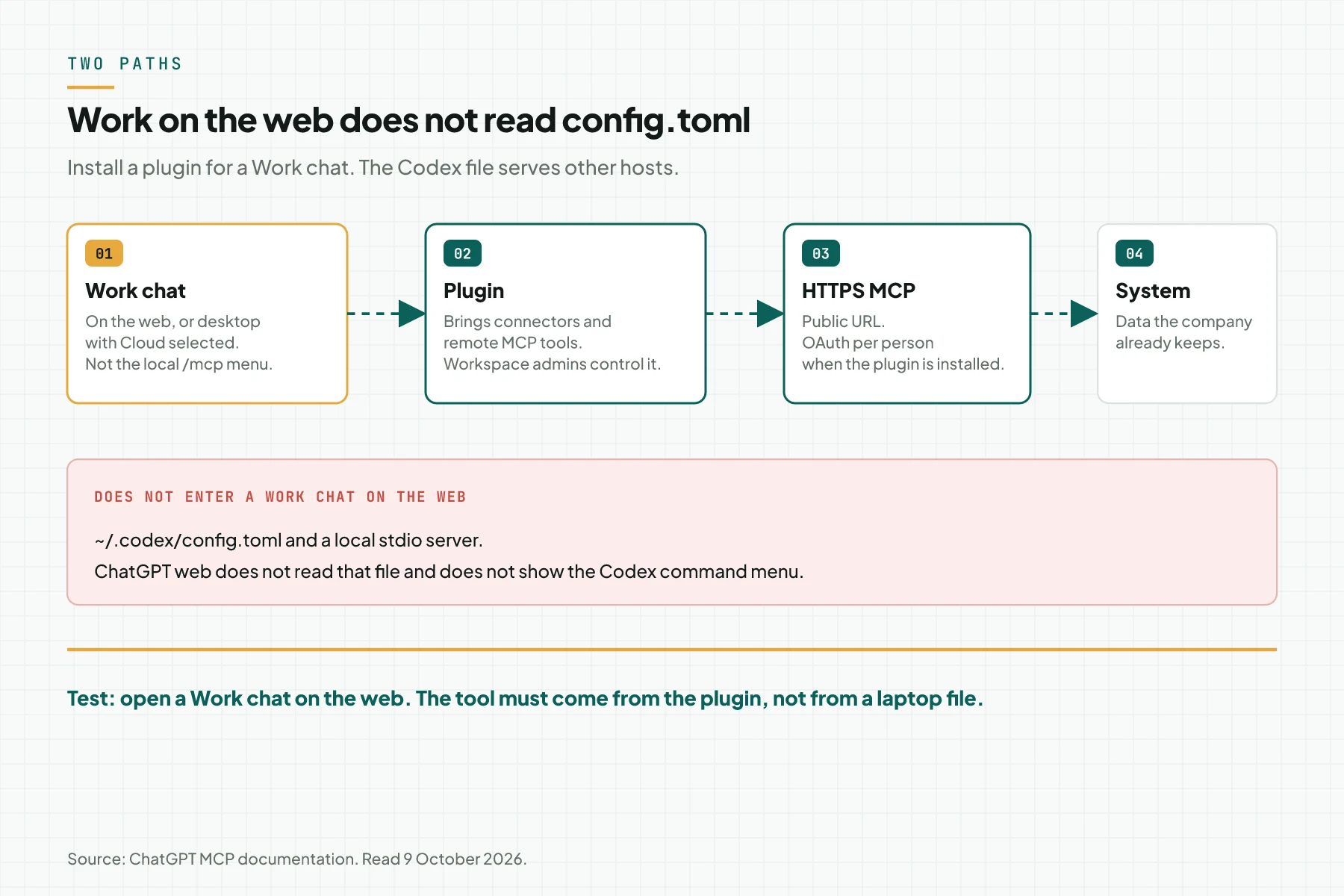
Direct answer: ChatGPT Work on the web uses MCPMCPA standard that lets an AI program use your tools and data under clear permissions.Open the glossary through an installed plugin, not through ~/.codex/config.toml. After the plugin is installed, a normal chat and a Work chat can use those remote tools. Workspace admins decide which plugins and tools are available.
Main condition: The server on this path is HTTPS that ChatGPT can reach. ChatGPT MCP documentation, read 9 October 2026, separates the Codex host (desktop, CLI, and the IDE extension) from the web chat. MCP Events, for a watch that pushes the chat, exist in Work chats on the web, in desktop Work chats with Cloud selected, and on dots.
Limit: We did not click through a ChatGPT Work account on that read date. The menus below follow OpenAI documents. ChatGPT web does not read the Codex file on a laptop. Continuing a Local computer access with Work Cloud conversation on another device does not install plugins and does not grant access to connected accounts.
The documents were read on 9 October 2026. The sources are ChatGPT MCP documentation, Build MCP servers for plugins, and MCP Events documentation. The example uses dummy data. It is not a customer record. Read what MCP is when the words server and tool still blur. The ClaudeClaude ProThe paid subscription for the Claude AI assistant from Anthropic. It unlocks connectors to outside tools.Open the glossary Cowork path is different. See MCP for Claude Cowork.
The problem: the right file on the laptop, an empty tool list in Work
Teams often add the server in Codex first. The command codex mcp add writes config.toml. The desktop app, the CLI, and the IDE extension share that file. A Work chat on the web does not follow.
The ChatGPT MCP documentation says ChatGPT web does not read local Codex configuration files and does not show the Codex command menu. The place to manage tools on the web is the Plugins tab.
A /mcp check in the terminal does not prove that a Work chat sees your tool. The valid test is a Work chat on the web, after the plugin is installed.
the MCP client comparison records the limits of other clients as of 13 September 2026. This article locks the Work path only.
How it works: a plugin carries the remote server
A Work chat has 4 parties. A person opens the Work chat. A plugin carries the connectors and the remote MCP tools. Your server answers on HTTPS. The source system stays behind that server.
Build MCP servers for plugins writes the steps for a custom server. Open ChatGPT Plugins. Press the plus button. Choose Add custom MCP server. Enter the URL and the authentication details. Review the risk warning. Choose I understand and want to continue. Then choose Create as a plugin. Install that plugin. Test it with prompts in chat and in deep research.
OpenAI states that a custom MCP server is not developed or verified by OpenAI. That server is a third-party service with its own terms. Do not connect a server whose organization you do not trust.
The authentication the document recommends is OAuth with Client ID Metadata Documents when the authorization server supports CIMD and the plugin creator chooses it. ChatGPT supports public-client token exchange with none and private_key_jwt client assertion. Dynamic client registration remains supported when it is configured. People in the workspace get an OAuth flow to your service.
For deep research and company knowledge, the server should provide 2 read tools, search and fetch, with the compatibility schemaSchemaExtra description inside page code that tells a search engine what the page is, for example an article, a service, or a question and answer.Open the glossary named in that document. A tool that changes data still needs approval.
Three places, three different files
| Place | How you add a server | Who sees the tool | Not for |
|---|---|---|---|
| Work chat on the web | A plugin, including Add custom MCP server | Chat and Work after the plugin is installed | stdio on a laptop |
| Codex desktop, CLI, IDE | Settings, MCP servers, or config.toml | Codex hosts that share that file | ChatGPT web |
| Work + Cloud on desktop | A plugin for remote tools. Cloud policy still applies | A Work chat with Cloud selected | Assuming local MCP follows into the cloud |
The documentation says that continuing a Local computer access with Work Cloud conversation on another device does not install plugins. Local MCP servers and their transports may be unavailable in the cloud. Check connectivity and authentication separately.
On a Codex host, the add-server menu offers STDIO or Streamable HTTP, then Restart. In the composer, /mcp lists connected servers. That menu is not evidence for the web chat.
Timeouts in config.toml also belong to the Codex host. The default startup_timeout_sec is 10 seconds. The default tool_timeout_sec is 60 seconds. Do not paste those numbers onto a Work chat on the web. The Work documents do not use those two numbers.
Who is allowed to install
Workspace admins control the plugins and tools that are available. A person who is not an admin can see an empty list even when the server URL already answers.
Approval mode on a Codex host has 4 values: auto, prompt, writes, and approve. The value writes asks for tools that are not marked read-only. This is a Codex file setting, not a button in the web chat.
On ChatGPT, the MCP build document says write actions currently require manual confirmation in the conversation before they run. That confirmation flags data that may be sensitive. A server can mis-mark a write action as a read. Trust in the read label alone does not close the risk.
The same document tells you to review the parameters of each action when you install a server by hand. A parameter that asks for the conversation text, an address, or data the task does not need is a reason to reject the server.
Requirements before the URL becomes a plugin
- 1 HTTPS URL that answers from outside the office network. MCP hosting choices compares Workers, a VPS, and stdio.
- 1 workspace account that may add a plugin, or an admin who turns it on for you.
- 1 test identity on the source system, without the right to delete production data.
- A tool list that separates read and write. Include
searchandfetchwhen you want deep research. - OAuth per person, not 1 admin key shared by every member.
Step 1: Separate the Work test from the Codex test
Record two results apart. The first result is codex mcp list on the laptop. The second result is the Plugins tab in ChatGPT web. Do not treat them as the same list.
Treat the server as absent from Work when it appears only in the terminal. The web chat does not read the file that CLI command writes.
Stop here when your goal is only Codex on a laptop. This article is for a Work chat. A stdio server does not become a web plugin.
Step 2: Create a plugin from the server URL
Open ChatGPT Plugins. Press plus. Choose Add custom MCP server. Paste the HTTPS URL. Enter the authentication your server requires.
Read the risk warning to the end. Choose I understand and want to continue only when you know the application behind that URL. Then choose Create as a plugin.
Install that plugin. Ask a workspace admin to allow it when your list does not show an install button. Without that admin grant, other members do not see the tool.
Step 3: Test 1 read tool in a Work chat
Open a Work chat on the web. Ask 1 question that needs only a read tool, with the test identity. Record the tool name that was called and the answer that came back.
Repeat 1 prompt in deep research when the server provides search and fetch. Those are the two tools the document asks for company knowledge.
Do not test a write tool on production data in this round. The document says a write action waits for manual confirmation. Still treat that confirmation as required, because a read label on the server can be wrong.
Step 4: Add MCP Events only when Work must react on its own
Skip this step when a person always opens the chat first. MCP Events is for the other case: ChatGPT subscribes to a change, then the chat follows your instructions when the event arrives.
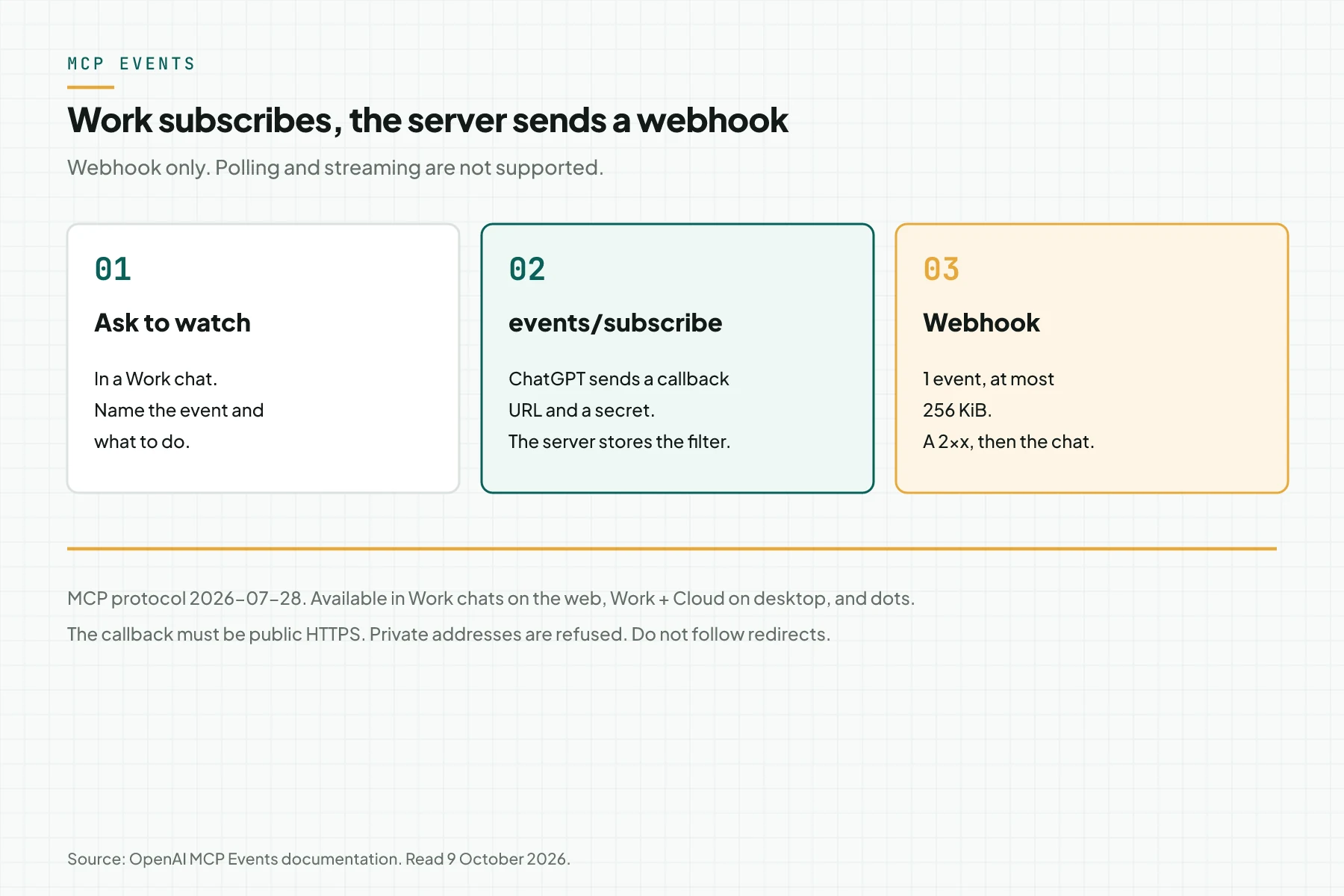
MCP Events documentation requires MCP 2.0, protocol version 2026-07-28. The server advertises events on server/discover, then implements events/list, events/subscribe, and events/unsubscribe on the same endpoint as the tools.
The supported delivery is webhook only. Polling, streaming, and the gap and terminated notifications are not supported by this integration. Each request carries 1 event. The full body is at most 256 KiB, which is 262,144 bytes. A 2xx response means the webhook was received. ChatGPT processes the event asynchronously.
The callback must be HTTPS. The document tells you to refuse private and local addresses, and not to follow redirects. Callback verification uses a single-use challenge before application data is sent. The signing secret starts with whsec_.
Test in a Work chat on the web, or select Work and Cloud in the desktop app. Ask to subscribe to 1 event. Trigger 1 event that matches the filter, and 1 event that does not. The one that does not match must not be delivered. Stop watching, then confirm the server processes events/unsubscribe.
The other place the document names for the same test is dots. Dots are not a replacement for a Work chat. They are an extra test path on the same account.
Worked example: a Sumber Jaya document comment
This is a simulation. The company Sumber Jaya has 1 test document, doc_123. The MCP server publishes the tool search and the event comment.created. Both use a test account, not an account that can delete documents.
| Time | Input | What is recorded | Output |
|---|---|---|---|
| 10:00 | codex mcp list on the laptop | The server is visible in Codex | Not evidence for Work. Repeat on the web |
| 10:15 | Add custom MCP server | A plugin is created after the risk warning | An admin allows the plugin |
| 10:30 | Work chat: find doc_123 | 1 search call | The document title returns |
| 10:40 | Ask to watch comment.created | events/subscribe for doc_123 | The callback passes the challenge |
| 10:50 | 1 comment on doc_123 | Webhook 2xx, under 256 KiB | The Work chat receives the comment data |
Stop at 10:00 when you only have a terminal result. Stop at 10:40 when callback verification fails. Do not send document content before the challenge matches. Stop at 10:50 when an event for another document is also delivered. The filter must be applied on the server, not in the chat.
Checklist before the plugin is used for work
- The server builder keeps proof that the URL answers from outside the office, with a time and a response code.
- The workspace admin keeps the plugin name, the URL, and who may install it.
- Each person signs in with their own account through OAuth. There is no admin key in a shared header.
- The tool list separates read and write. A write action still waits for confirmation in the conversation.
- The parameters of each tool are reviewed. A parameter that asks for data outside the task is rejected.
- When Events are used, the server keeps the subscription across a restart and stops delivery when access is revoked.
- Stop when the tool appears only in Codex, or when a webhook sends an event outside the filter.
When to use Codex, and when to use a Work plugin
Use config.toml when the tool runner is Codex on a laptop, the CLI, or the IDE. That file is for those hosts, and the three clients share the configuration.
Use a plugin when the place that must see the data is a Work chat or a chat on the web. The admin holds the plugin list. The server must be remote.
Rama Digital recommendation: 1 HTTPS server, read tools for 1 system, then a test in a Work chat on the web before Events are turned on. Events add an outbound webhook. Do not turn them on on the same day as the first write tool.
Questions people ask
Does ChatGPT Work read the MCP server I added in Codex? Not for the web chat. The documentation says ChatGPT web does not read local Codex configuration files. Install a plugin so Chat and Work can use the remote tools.
Where do I add my own server URL? In ChatGPT Plugins, the plus button, then Add custom MCP server. Enter the URL and the authentication, accept the risk warning, then Create as a plugin.
Do write actions run on their own? The MCP build document says ChatGPT currently asks for manual confirmation in the conversation before a write action. Review that confirmation. A read label on the server can be wrong.
What does MCP Events require? A Work chat on the web, or Work with Cloud on the desktop, or dots. Protocol 2026-07-28. Webhook delivery only. One event is at most 256 KiB.
Can Events use polling? No. The MCP Events document says polling, streaming, and the gap and terminated notifications are not supported by this ChatGPT integration.
Does the same menu apply in Claude Cowork? No. Cowork calls the URL from Anthropic cloud through a custom connector. Read the Cowork article before you copy a ChatGPT plugin step into Claude.
Next step
The limits above still apply. A Codex file does not fill a Work chat on the web. MCP Server Development Service builds 1 MCP server for systems that already run, then tests it on 1 client. book a technical scoping session when you want to lock the URL, the tool list, and whether Events join the first round.
Sources
- ChatGPT MCP documentation. Read 9 October 2026. The plugin for a Work chat, and the Codex file limit.
- Build MCP servers for plugins. Read 9 October 2026. Add custom MCP server, OAuth, and write-action confirmation.
- MCP Events documentation. Read 9 October 2026. Webhooks, protocol 2026-07-28, and the 256 KiB limit.
- MCP for Claude Cowork. The Claude Cowork path, separate from a ChatGPT plugin.
- MCP hosting choices. A public address for the server.