Grok Bot 1.0 moves Grok Bot out of beta. Now 1 Bot can work for a full team in Slack, Microsoft Teams, and video calls. xAI announced this version on 2 November 2026, and the app got version 1.0.1 on 11 November 2026.
Team features need a Team or Enterprise plan. Meetings are also on the Ultra plan. This article tells you what changed, how it works, and 7 checks for admins before a team uses a shared Bot.
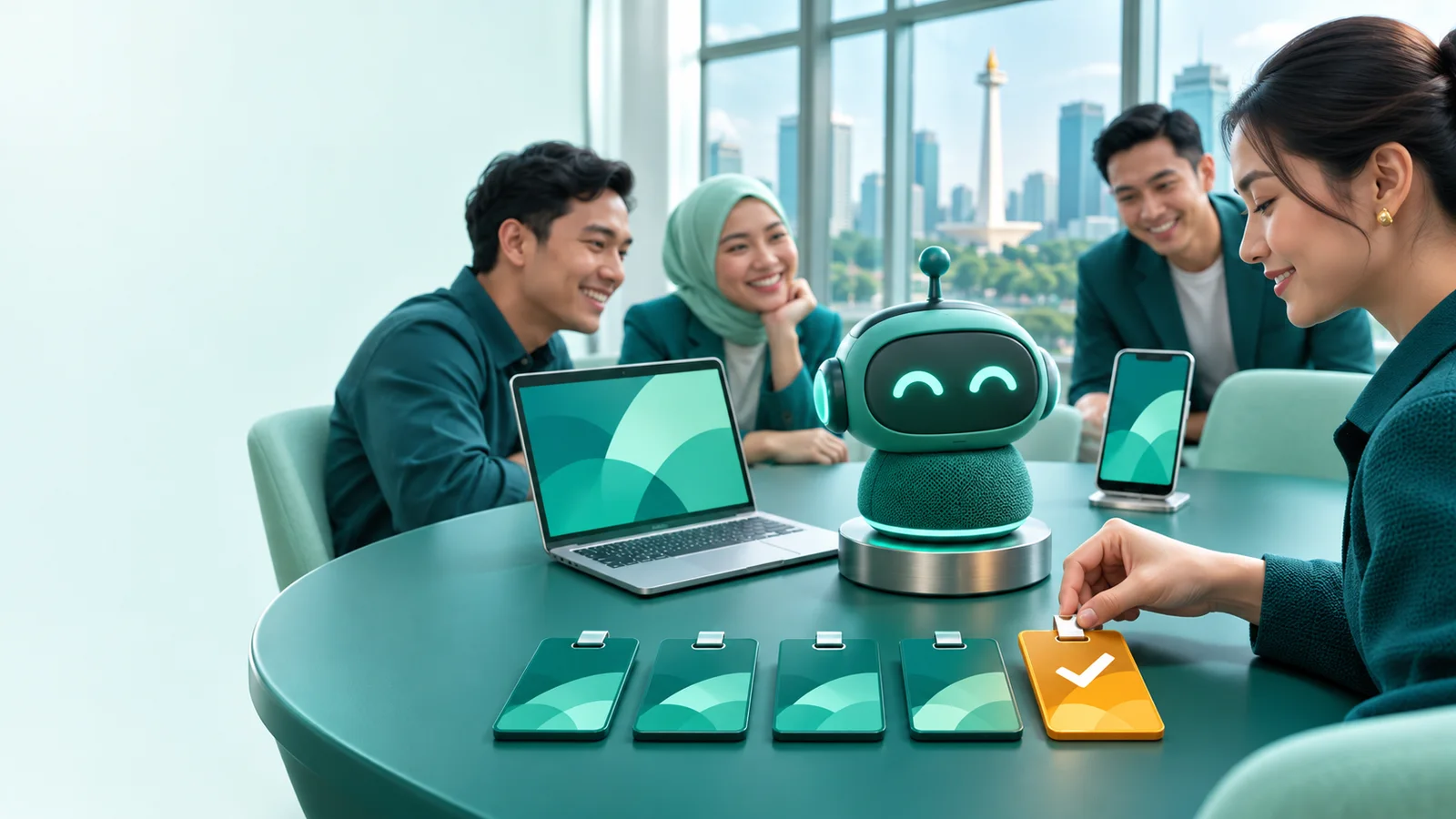
Grok Bot is an AI agentAI agentAn AI program that performs work steps by itself, for example reading a message, drafting a reply, and recording the result.Open the glossary from xAI. The agent signs in to your work apps, uses them as you do, and returns finished work. A Team Bot is a Bot that you share with a team. All members use the same Bot, but each chat stays private.
What is new in Grok Bot 1.0?
Grok Bot 1.0 adds 5 main items: Team Bots, Slack, Microsoft Teams, video calls, and shared connectors. The official list is in the Grok Bot 1.0 announcement and the Grok Bot changelog.
| Feature | What happens | Plan |
|---|---|---|
| Team Bot | You share 1 Bot with a team, an organization, or specific people. Each person's chat stays private. | Team, Enterprise |
| Slack | The Bot reads threads, replies when someone mentions it, and acts for the person who asked. | Team, Enterprise |
| Microsoft Teams | The Bot replies in channels, direct chats, and group chats. It sends files through OneDrive. | Team, Enterprise |
| Meetings | The Bot joins Google Meet, Zoom, or Microsoft Teams, replies in the meeting chat, and sends a summary. | Team, Enterprise, Ultra |
| Shared connector | All users of the Bot use 1 app account. The “Share your account” mode needs admin permission. | Team, Enterprise |
| Review learnings | What members teach a Team Bot waits for approval from the owner or a Manager. | Team, Enterprise |
Version 1.0.1 also has small fixes. The voice speed slider now goes from 0.5x to 2x. Files up to 250 MB on the Bot's computer no longer make a reply fail.
How does a Team Bot work?
A Team Bot works like a shared document: the owner creates it, publishes it, and shares it without a copy. These details are in the Team Bots documentation, last updated on 13 November 2026.
- The owner creates a new Bot. The Bot is a draft, and only the owner can see it.
- The owner adds apps, secrets, skills, and files. Every person who uses the Bot also uses these items.
- The owner selects Publish and shares the Bot with the team, the organization, or specific people.
- People that the owner adds become Collaborators. The owner can change a role to Manager.
The owner and Managers cannot read the chats of other members. A Team Bot reply uses the usage of the person who asked, not the owner's usage. Team Bots always run in the cloud, and a team needs at least 1 other member before it can share a Bot.
A Team Bot learns for the full team. When a member teaches a new way to do a task, the Bot only suggests the change. The owner or a Manager selects Approve or Reject in Review learnings.

What is daily use like in Slack and meetings?
The daily flow is simple: a member mentions the Bot in a thread, the Bot does the work, and it asks before risky actions. In Slack, only the person who made the request can answer the “Review an action” card.
For a meeting, a member pastes a Google Meet, Zoom, or Microsoft Teams link into the Bot chat. The host then admits the Bot. The Bot shows the label “transcribing”, replies in the meeting chat, and sends a summary and action items after the call. Source: Grok Bot meetings documentation, 11 November 2026.
The documentation shows 2 good points. First, each person's chat is private, although the team shares the Bot. Second, the Disable Interactivity option lets the Bot take notes without replies in the meeting chat.
There are also 2 possible problems. Tech writer Flavio Copes wrote that his Mac app was still on version 0.79.3 on the evening of 11 November, so the 1.0.1 menus did not show. He also said the documentation is more modest about proactive work than the announcement. Source: Flavio Copes review, updated on 12 November 2026.
Example: a marketing team of 5 people uses 1 Team Bot to write ad copy in Slack. The Bot joins the weekly Google Meet call, records decisions, and sends a task list. Each person still asks for drafts in a private chat.
How do you add the Bot to Microsoft Teams?
Microsoft Teams setup needs 3 approvals from 3 different roles. The steps are in the Microsoft Teams documentation.
- A team admin selects Enable Microsoft Teams on the dashboard. The admin signs in with a Teams administrator or Global administrator account.
- The owner or a Manager selects Connect Microsoft Teams in the details of a published Bot.
- A Microsoft Teams admin approves the Bot in the Teams admin center, at Teams apps > Manage apps > Pending approval.
Microsoft does not notify the admin. Send the link from the dialog to the admin yourself. After approval, Microsoft Teams can need up to 1 hour to finish the setup.
Which security settings must admins check?
Admins must check 3 settings on the Grok Bot page of the team dashboard, because 1 setting is on by default. The table comes from the Team Bots documentation.
| Setting | Default | Risk if wrong |
|---|---|---|
| Bot sharing | Everyone | All members can share Bots, with the apps and secrets in them. |
| Allow Shared Logins | Off | When on, all users of the Bot act through the account of 1 Manager, also to change data. |
| Slack Workspace Access | On | Slack workspace members who are not on the team can use Bots shared with the organization. |
The official announcement says Bots respect each person's permissions and ask before sensitive actions. Bots also check if information is correct to share in a public channel. Treat the default settings as a start point, not a final decision.
What are the 7 admin checks before a team uses Grok Bot 1.0?
Do these 7 checks before you share your first Team Bot. They go from the app version to a small trial.
- Check the app version. The new menus need version 1.0.1 or later.
- Check the plan. Team Bots need Team or Enterprise. Meetings need Team, Enterprise, or Ultra.
- Select who can share Bots: Everyone or Admins only.
- Decide on Slack Workspace Access. Turn it off if your Slack workspace has people outside the team.
- Keep Allow Shared Logins off, unless the shared account holds no sensitive data.
- Examine the apps, secrets, and files in each Bot before you select Publish.
- Test 1 Team Bot with 2 to 3 people for 1 week, then open Analytics to see messages and hours saved.
If your team needs an agent that touches core business processes, also read our MCP guide for Grok Bot and our Grok Bot 0.70.2 review. For measured automation flows, see the AI Business Process Automation service.
Questions and answers
Is Grok Bot 1.0 free?
No. On The X Subscription, Grok Bot is in the Premium, Super, and Ultra plans. The Plus and Free plans do not include Grok Bot, according to the official xAI FAQ.
Can the owner of a Team Bot read my chats?
No. The xAI documentation says each person's chat with a Team Bot is private. The owner and Managers cannot read the chats of other members.
Can the Bot speak in a meeting?
The current documentation says the Bot replies in the meeting chat. The host must admit the Bot, and the Bot shows the transcribing label until the call ends.
Why is the Bot not in Microsoft Teams yet?
The most frequent cause is a missing Teams admin approval. Microsoft does not send a notification, and setup can need up to 1 hour after approval.
Whose usage does a Team Bot use?
A Team Bot reply uses the usage of the person who asked. A reply to a Slack user without a linked account uses the team's usage.
Conclusion
Grok Bot 1.0 is worth a trial for teams that already use Slack or Microsoft Teams and have a Team or Enterprise plan. Start with 1 small Team Bot, check the 3 admin settings, and turn off Slack Workspace Access if your workspace has outside people.