Direct answer: Exploded UI separates interface layers in 3D space to show how the parts relate. For Konektor.id promotion, show the Inbox, conversation, and lead status as connected layers. Use this visual to explain the product before asking people to open its website.
Main condition: Each layer must represent a product function that readers can check. Limit: A 3D effect does not prove higher sales or advertising results. The images in this article are AI concept illustrations, not product screenshots.
We researched this article on 5 October 2026 through Rotato, Apple, and Konektor documentation. We also examined interface source files and assets in the Konektor repository. We did not run an advertising campaign or test every feature in a production account.
What does exploded UI mean?
The term describes an exploded view applied to an interface. Rotato explains layer separation as a way to show design structure and hierarchy. We use that definition, checked on 5 October 2026, rather than introduce a new standard.
The technique also has a technical use. At WWDC 2018, Apple showed a 3D exploded view for inspecting view hierarchy in Xcode.
This example demonstrates use before current visual trends. It does not prove advertising benefits.
Another design example is UI Exploded View by Qi Shi. The designer separated button layers to explain their depth. This is a component presentation, not a marketing effectiveness study.
Why a dashboard screenshot may not explain the product
A dashboard can contain menus, charts, tables, and status labels on one screen. Advertising readers must find the relevant part before understanding its value.
On a phone, those details can become difficult to read. Check whether this presentation problem applies to your asset.
Exploded UI gives you space to enlarge the part that answers one question. For example, how does a conversation relate to lead status?
Other parts remain as context, with less emphasis. Visual depth can show that relationship without showing every menu.
Rama Digital recommendation: use this technique when the relationship between parts is the main message. Use a screenshot when readers need the exact interface. For creative review and destination checks, read our generated advertising creative workflow.
How to make the layers understandable
Keep one base plane
The base plane shows where the raised parts belong. Use the browser frame or dashboard area as that base.
Keep the same camera direction for every panel. Guide lines can show where a panel returns when the interface comes together.
Without a base plane, floating cards can look like a feature collection. That collection can serve as an illustration, but it has a different structural relationship. Name the image according to its form so readers understand what it represents.
Group parts according to the message
Choose parts that remain meaningful when enlarged. The conversation panel can form one group.
The lead status card can form another. Do not separate every icon if it adds no useful explanation.
Rotato's cinematic layer explosion documentation explains that design groups become separate 3D elements. Its spacing control changes layer separation. This article applies that presentation principle to static AI illustrations.
Separate visual depth from data flow
The highest layer receives emphasis in the composition. Its position does not prove that the system processes it last.
Do not present a 3D arrangement as a backend diagram without evidence. Use a separate explanation when discussing data flow.
In the promotion example, the conversation and lead card show a relationship between functions. Status changes still depend on the applicable actions and rules. The visual does not claim that every chat automatically becomes a purchase.
Choose a format for the task
| Format | What it shows | Suitable use | Limit |
|---|---|---|---|
| Screenshot | An interface that was actually captured | Menu instructions and usage evidence | Details can become hard to read in a small advertisement |
| Structural exploded UI | Layers from one screen or component | Interface hierarchy explanation | Each panel's original position must remain clear |
| Exploded UI illustration | A visual interpretation of verified functions | Articles, presentations, and promotion concepts | Does not prove the exact interface or business results |
| Floating feature cards | Several functions in one composition | Product overview | Does not necessarily represent layers from one screen |
Which Konektor.id functions can we show?
Konektor's Inbox guide explains team conversation management. Its Dashboard Analytics guide supports the data overview concept. We checked both on 5 October 2026.
The conversion guide supports the delivery monitoring concept. In the illustration, that panel represents a place to check delivery status. We did not treat numbers from sample assets as customer results.
The Meta CTWA guide gives an essential limit. A ready configuration, Meta event acceptance, and Ads Manager attributionAttributionHow a system decides which ad or channel receives the credit for 1 sale.High clicks, low sales: the tracking gap require different evidence. Therefore, the image does not equate a green icon with a sale or successful attribution.
The colours also follow the product. Konektor's CSS source defines blue #007aff and lime #61d100.
Dashboard assets use a navy background. The generated images follow this direction without recreating the official logo or using customer data.
Prepare the inputs before generating an image
- Choose one reader, such as a business owner who receives prospects through WhatsApp.
- Write one message that the product functions can support.
- Prepare read access to the source or documentation for each displayed feature.
- Choose one destination page that matches the requested action.
- Use sample conversations and anonymous identities.
- Save the brief, prompt, and output in files that reviewers can inspect.
You do not need to connect an advertising account or send events to create this visual concept. Those tasks become relevant when the team runs a campaign. Keep concept work separate from actions that change production systems.
Step 1: Choose one relationship to explain
Write the main relationship before choosing the 3D effect. In the first example, the dashboard gives context to leads and conversionConversionThe action you count as a result, for example a paid order, a sign-up, or a chat that becomes a qualified buyer.Open the glossary monitoring.
Raised panels still follow one grid. Metric slots use dashes instead of figures.
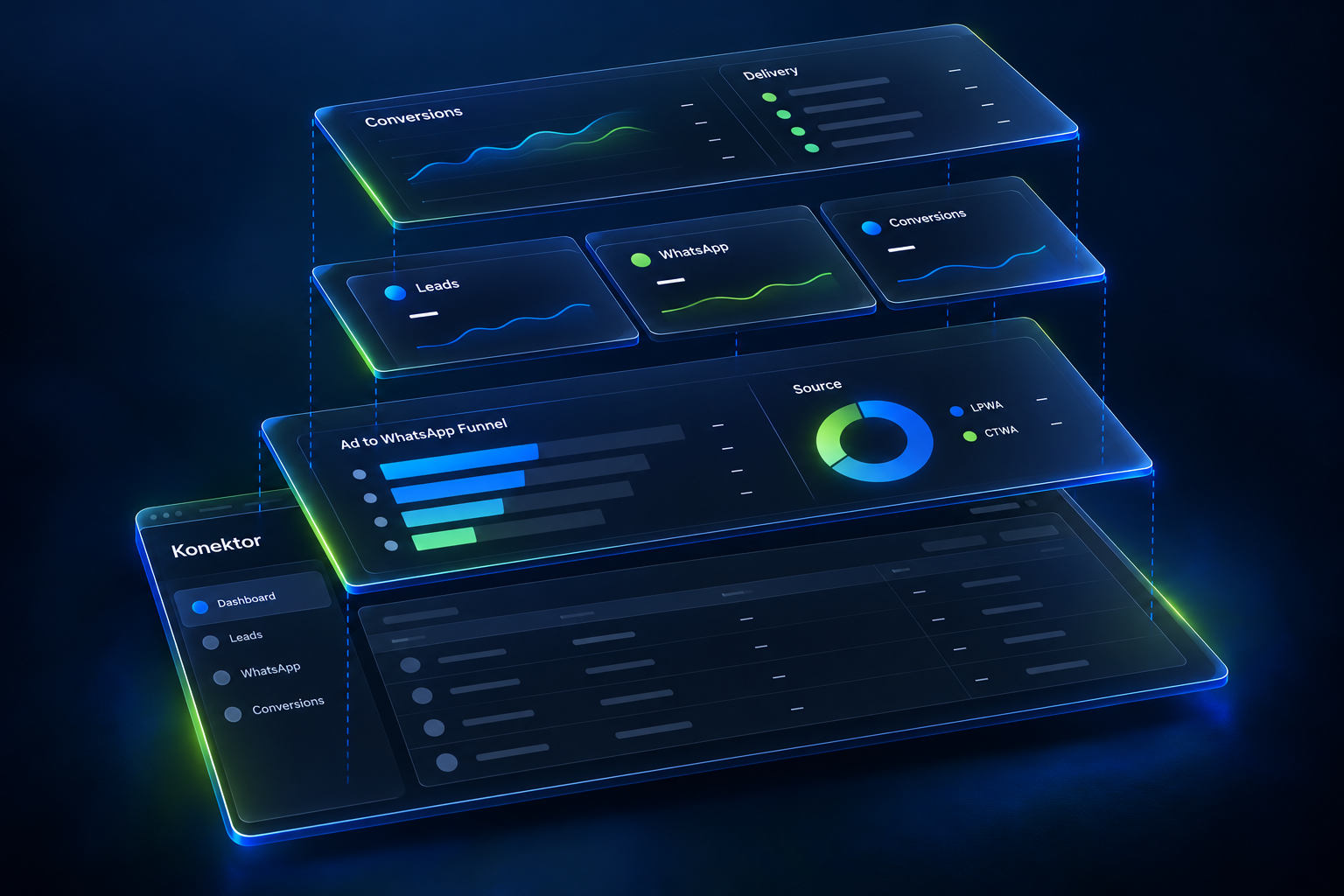
Check the result: Readers must recognise one dashboard and its separated parts. If the image looks like several applications, correct the grid or remove panels. Do not increase panel count to imply that the product has more functions.
Brief note: this image explains a relationship rather than every product feature. Record why you selected each panel. That record helps an editor reject details that do not support the message.
Step 2: Keep the shape when separating layers
Use the Inbox as the second example. The conversation list, chat area, and lead summary have original shapes that readers can compare.
The image shows the assembled state on the left and the separated state on the right. Guide lines connect panels to their original positions.
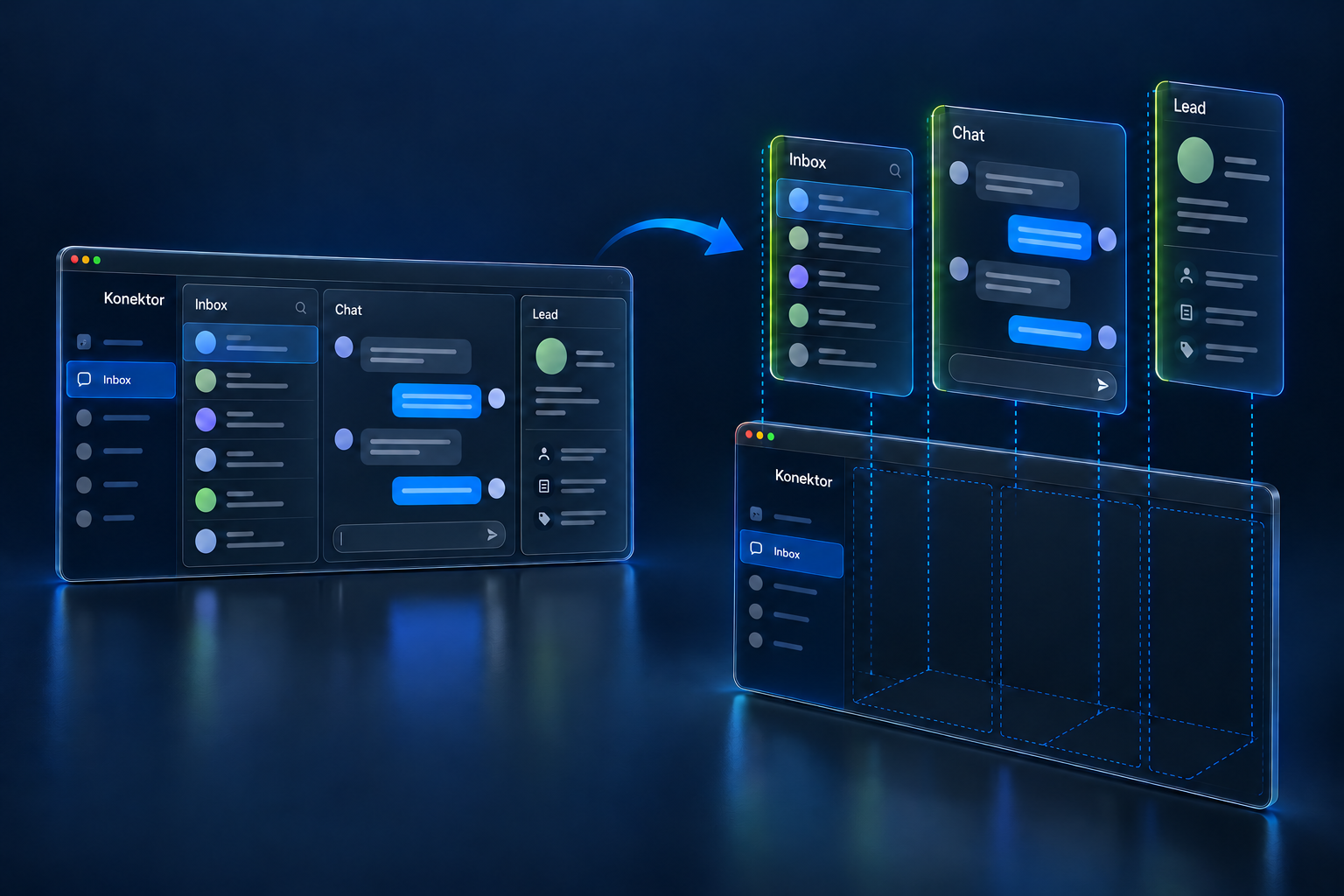
Check the result: Compare panel count, position, and camera direction in both states. Read the main labels without enlarging the image. If light obscures the text, reduce the lighting effect first.
For full generation, put the limits in the prompt. Specify the base, permitted panels, product colours, and exact text.
Exclude prices, performance figures, customer identities, and added features. Inspect the output because the model can still introduce unwanted details.
Step 3: Turn the concept into a promotion example
Choose one short message for the advertisement example. We use “From chat. To lead status.”
This text explains a relationship between functions. It does not promise automatic sales. “Explore Konektor.id” asks readers to examine the product.
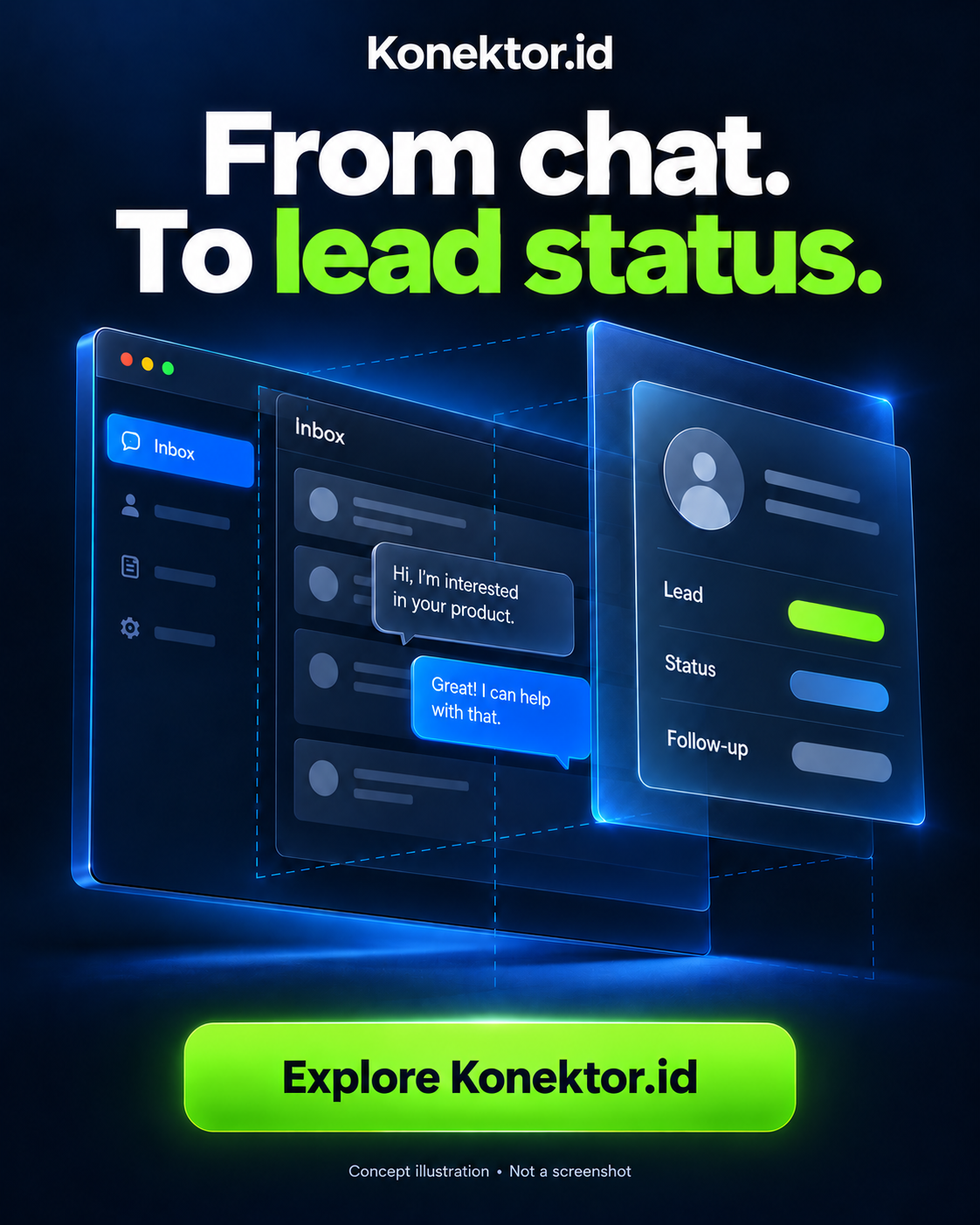
Check the result: View the asset at phone width without zoom. Readers must be able to read the headline, recognise the product, and find the requested action. Check it again in the placement preview before using it as an advertisement.
If the format changes, create a composition for the target format. Do not assume that automatic cropping will preserve the message.
The portrait version in this package is a concept example. It is not a delivered campaign.
Worked example: from brief to editorial decision
The following simulation uses dummy data on 5 October 2026. Times describe an example work sequence, not a campaign execution record. The reviewed outputs are visual accuracy and message clarity.
| Example time | Input | Decision | Output |
|---|---|---|---|
| 09.00 | Brief for a business owner who uses WhatsApp | Focus on the relationship between chat and leads | One main message |
| 09.20 | Inbox and conversion documentation | Separate verified functions from performance claims | List of permitted panels |
| 10.00 | Prompt with blue and lime colours | Use anonymous identities and empty metric slots | Concept image |
| 10.30 | Image containing an added brand symbol | Remove the symbol that is not the official logo | Revised visual |
| 11.00 | Phone preview | Accept when the message is readable and functions are accurate | Asset for review before delivery |
Checklist before using the asset
- Editor: compare every panel with documentation; save the source link.
- Product owner: check names and colours; save the brand decision.
- Designer: check panel direction; save the approved version.
- Editor: check every text item; save the final text list.
- Designer: check phone readability; save the placement preview.
- Media buyer: match the requested action to the destination; save the URL and UTMUTMA label you attach to a page address to mark the source of a visit, for example the campaign and the channel.Open the glossary.
- Analyst: define the business result to measure; save the measurement definition.
- Campaign owner: stop publication if features, claims, or destination are wrong; save the rejection reason.
How to test this idea without inventing results
Rama Digital recommendation: compare a regular screenshot with an exploded UI illustration when both carry the same message. Keep the offer, audience, and destination consistent where the test permits. Record changes that you cannot control.
Measure actions after the click, rather than attention alone. Choose a measure such as relevant demo requests or completed activation.
Define evaluation conditions before reading results. Do not turn click-through rateCTRClicks divided by impressions, as a percentage. CTR shows how often people press the ad or the search result they saw.Open the glossary into a sales conclusion.
For the relationship between WhatsApp leads and conversion tracking, read our Konektor and Qontak tracking guide. This article provides a visual concept. Its effectiveness still needs testing in a campaign with measurement that matches the objective.
Real references you can compare
| Reference | Object | Explanation | Evidence limit |
|---|---|---|---|
| Apple WWDC 2018 | View hierarchy | Interface inspection through a 3D view | Debugging use |
| Qi Shi | Button | Relationship between layers and depth | Personal design work |
| SliceForge | Game UI component | Assembled and separated parts | Product demonstration |
| Konektor example in this article | Dashboard and Inbox | Related functions for a promotion concept | AI illustration; untested as advertising |
SliceForge provides a layer demonstration with assembled and exploded states. This shows functional presentation on a product website, checked on 5 October 2026. These references help assess visual form, not select a campaign winner.
Frequently asked questions
Is exploded UI a new Konektor feature? In this article, exploded UI is a way to present Konektor functions as an illustration. We did not change the dashboard or product behaviour.
Do these images contain pasted screenshots? All final images were generated entirely with imagegen. We used Konektor source files and interface assets to check functions and visual direction before generation.
Can a generated image serve as usage evidence? Use a screenshot or verified demonstration when readers need evidence of the exact interface. Label illustrations so readers understand their purpose.
Does delivery status mean an advertisement produced a sale? Delivery status, platform attribution, and business results require different evidence. Check each through the appropriate system.
Does exploded UI guarantee higher conversions? There is no specific evidence for this example. The visual effect remains a hypothesis to test with a clear message, destination, and business measure.
Choose the next action
This concept does not yet prove campaign results. To prepare message testing and measurement, examine Meta Ads Performance Management. To examine product functions, open the Konektor demo schedule.